01
Upload your images
Open the Piceclip editor and upload two or more photos, screenshots, or other images.

Place two or more photos or screenshots next to each other, customize the layout, and download everything as one image. Piceclip is free and requires no sign-up.
Upload, arrange, and download
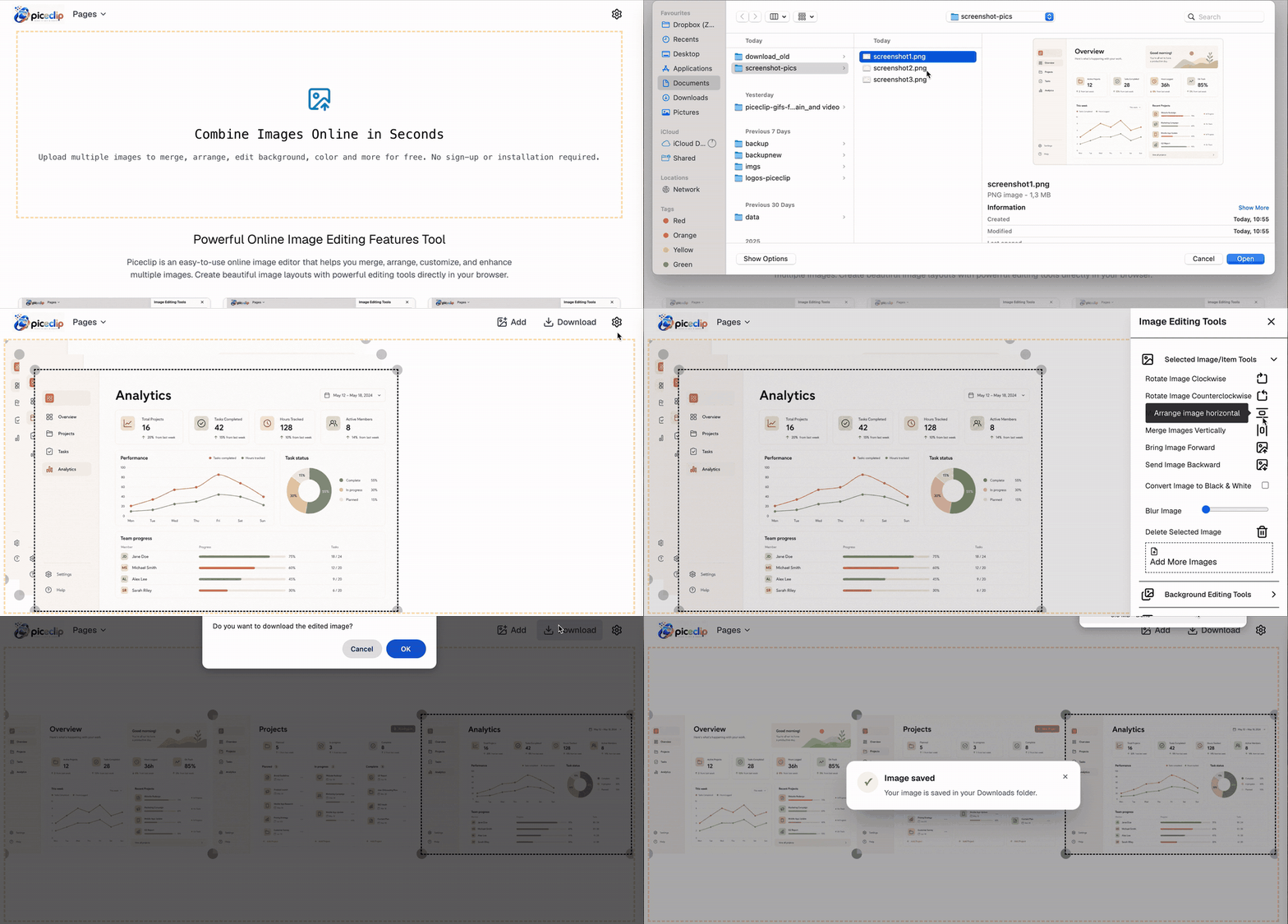
The existing Piceclip editor gives you everything needed to create and customize a horizontal image layout.
Open the Piceclip editor and upload two or more photos, screenshots, or other images.
Use the horizontal arrangement control to place the uploaded images neatly side by side.
Resize, rotate, reorder, add borders, change the background, or include text and emojis.
Download the complete side-by-side composition as one high-quality image.
Quickly arrange images next to each other and continue editing when you want more control over the final result.
Start combining images immediately without creating an account.
Use Piceclip from a phone, tablet, laptop, or desktop browser.
Add borders, backgrounds, text, emojis, filters, and other finishing touches.
Create your composition without an account and with minimal unnecessary data collection.
A horizontal layout makes comparisons and visual stories easy to understand at a glance.
Common questions about combining images horizontally with Piceclip.
Open Piceclip, upload both images, and use the horizontal arrangement control. You can then resize or customize the images before downloading the finished composition.
Yes. You can upload multiple images and arrange them horizontally to create a longer side-by-side layout.
Yes. Piceclip supports images with different dimensions. You can resize and position each image to create the layout you want.
Yes. You can adjust the image positions, use a background, and add customizable borders to separate the images visually.
Yes. Piceclip is free to use and does not require an account or sign-up.
Create a clean side-by-side composition in seconds—free and no sign-up required.
Combine images side by side